 One Connect
Using One Connect
Tour of the app
One main surface, a short top bar, and every other tool in a drawer, the Settings dialog or the command palette. Here is where everything lives.
The main surface#
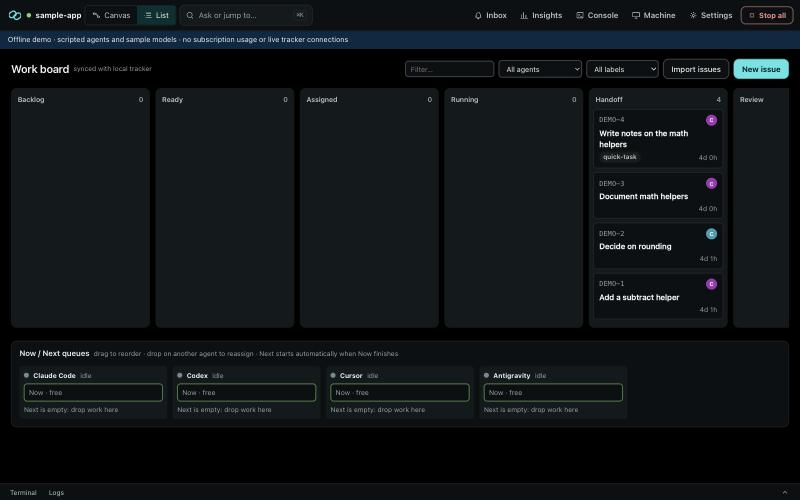
The window always shows one of two views underneath everything else. Switch with Canvas and List in the top bar.
- Canvas (home,
/): your workflows as node graphs, with the One Ask dock. See Canvas and workflows. - List (
/board): the issue list, with lifecycle columns, filters, Import issues, New issue and the Now/Next queues of every agent. See Issues, dispatch and review.
Every other tool opens over this surface and closes back to it, so you never lose your place.
The top bar#
| Control | What it does |
|---|---|
| Live dot and project switcher | Shows whether the dashboard is connected to the engine, and switches projects |
| Canvas / List | Switches the main surface |
| Ask or jump to… (⌘K) | Opens the command palette |
| Inbox | Questions, approvals, Decisions and critical alerts. The badge counts what is waiting for you. |
| Insights | Overview, Brief and reports, Analytics and Release |
| Console (Ctrl+`) | Shows or hides the bottom panel with terminals and the live engine log |
| Theme | Day, Night (pitch black) or Machine (follow the system) |
| Settings | Opens the Settings dialog |
| Stop all | Engages the project's kill switch after a confirmation. While engaged it reads Stopped · release. |
Banners under the bar tell you when you are in the offline demo, when the kill switch is engaged, when an agent connection needs attention, when an update is ready, and when you are offline.
Command palette#
Press ⌘K (Ctrl+K elsewhere) or click Ask or jump to…. Type to jump to any tool, setting or agent. If nothing matches, the last entry asks One Ask your question about the project.
Drawers#
Tools open in a drawer over the main surface. Each has its own address, so links and bookmarks work. Escape or the close button returns you to the canvas or list.
| Drawer | Address | What it is for |
|---|---|---|
| Inbox | /inbox | Everything waiting for you. See Inbox, approvals and decisions. |
| Decisions | /decisions | Owner decisions with evidence, risk and a second confirmation |
| Insights | /insights, /reports, /analytics, /release | Overview, Brief and reports, Analytics and the release cockpit. See Insights, reports and release. |
| One Ask | /docs | Ask about the project with cited sources. See One Ask and Dictionary. |
| Designer | /designer | Design interfaces with your design agent. See Designer and mocks. |
| Mocks | /mocks | Captured mock revisions, review and handoff |
| Agent | /agents/<id> | One agent's console, with a tab for team conversations |
| Team conversations | /team | Messages between agents. See Team conversations and shared context. |
| Terminal and containers | /workspace | Project terminals, Docker and local databases. See Terminal, containers and databases. |
| Run output | /runs/<id> | One run's full, live transcript, read-only |
| All workflows | /workflows | A table of every workflow |
The agent console#
Open an agent from the canvas, the list or the command palette. Its console shows, live:
- the transcript of the current run: messages, commands, edits, tests and questions;
- Pending approvals to answer in place;
- the Queue (Now and Next);
- Diff vs base and Tests;
- Usage meters where the vendor reports them;
- the Handoff and Run history;
- Durable run logs, paged in 128 KiB chunks so even very large logs open quickly.
Controls let you message the agent, pause, resume, nudge or stop the run. Claude Code and Cursor receive messages during a run; for tools without live input, your message is queued for the next turn. Relay agents show the prompt to copy and a box for the reply.
Settings#
The Settings dialog has six sections, each with its own address:
| Section | Address | Covers |
|---|---|---|
| Project and policies | /settings | Branches, checks and their Docker runtime, models, coordination, code host, hosting and database health, One Ask and Graphify, accounts and vendor terms, safety and privacy |
| Agents and sign-in | /setup | Adding and editing agents, harness setup, sign-in, own-account confirmations and cost approvals |
| Connectors | /connectors | Code hosts, infrastructure probes and local MCP tool connections |
| Skills | /skills | Project skills, templates, imports and the pinned built-ins |
| Projects | /projects | Adding, switching, stopping and removing projects |
| Phone and alerts | /remote | Install status, remote access, pairing and notification routing |
Changes to project settings never apply directly: Review settings changes creates an exact Decision that you confirm. See Configuration.
The console panel#
Press Ctrl+` or Console to open the panel at the bottom of the window. Drag its edge to resize it.
- Terminal: the project's terminals, the same sessions as in Terminal and containers.
- Logs: a live feed of what the engine did, filtered by All, Runs, Decisions or Problems.
Sounds#
With UI sounds on, the app plays a short sound when something new needs you, when a run finishes and when a critical alert arrives. Turn them off in Appearance.
Keyboard shortcuts#
| Keys | Where | Action |
|---|---|---|
| ⌘K / Ctrl+K | Anywhere | Command palette |
| Ctrl+` | Anywhere | Show or hide the console panel |
| Escape | Drawers, dialogs, menus | Close |
| ⌘Z / ⇧⌘Z | Canvas, Designer | Undo / redo |
| ⌘C / ⌘V | Canvas | Copy and paste selected nodes inside an editable workflow |
| Double-click | Canvas | Search for a node to add |
| ⌘D | Designer | Duplicate the selection |
| Delete | Canvas, Designer | Remove the selection |
| / | These docs | Search |
On a phone#
Opened from a paired phone, the dashboard switches to a one-column layout with a bottom tab bar: what needs you, every agent's status, Decisions, live transcripts and reports. See Phone and alerts.